

Meeting most successful women in tech


by admin
Meeting most successful women in tech

We will learn to add comments to WordPress. Adding comments can help your visitor to discuss with you. Comments are approved by the administrator and then posted for further discussion.
Following are the steps to add a comment to your blog post.
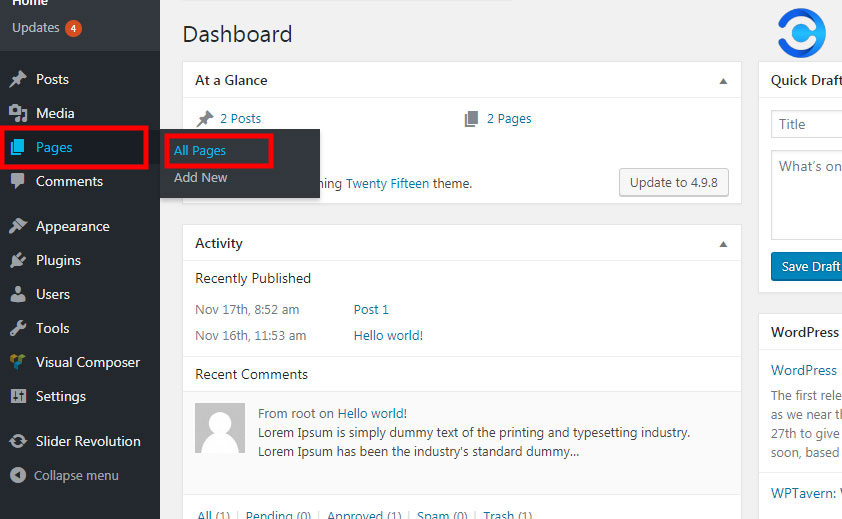
Step (1) − Click on the Pages → All Pages in WordPress.
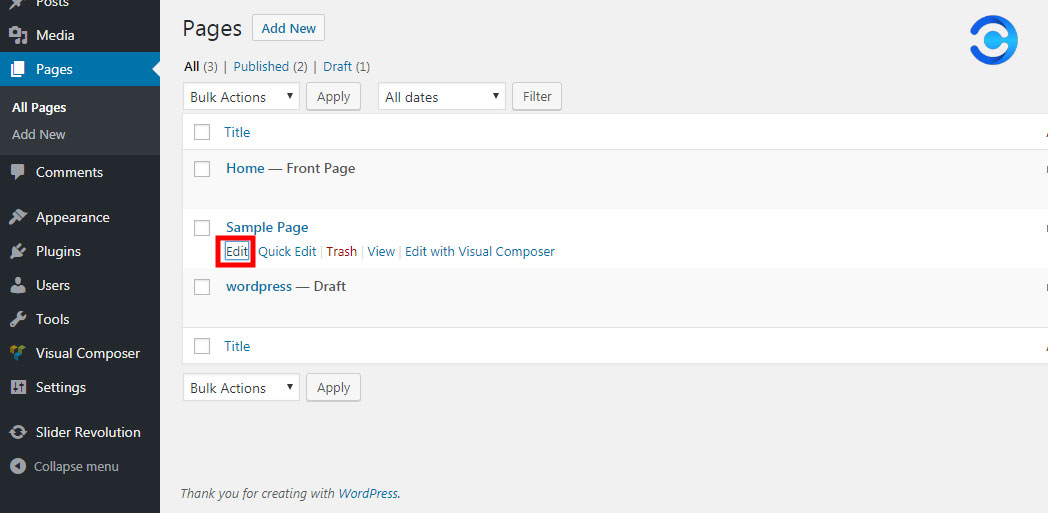
Step (2) −The list of pages created in WordPress will display in the following screen. Select any of the pages in which you want to add a comment. Here, we are going to add a comment to the sample page. Click on the sample page.
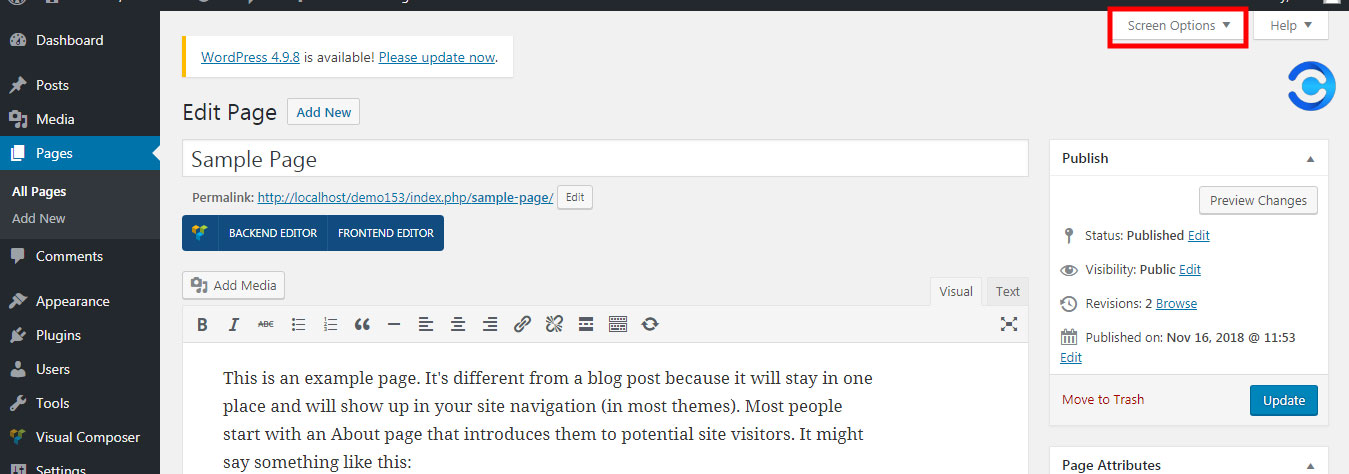
Step (3) − To add a comment on this page, click on the screen option in the upper right-hand corner.
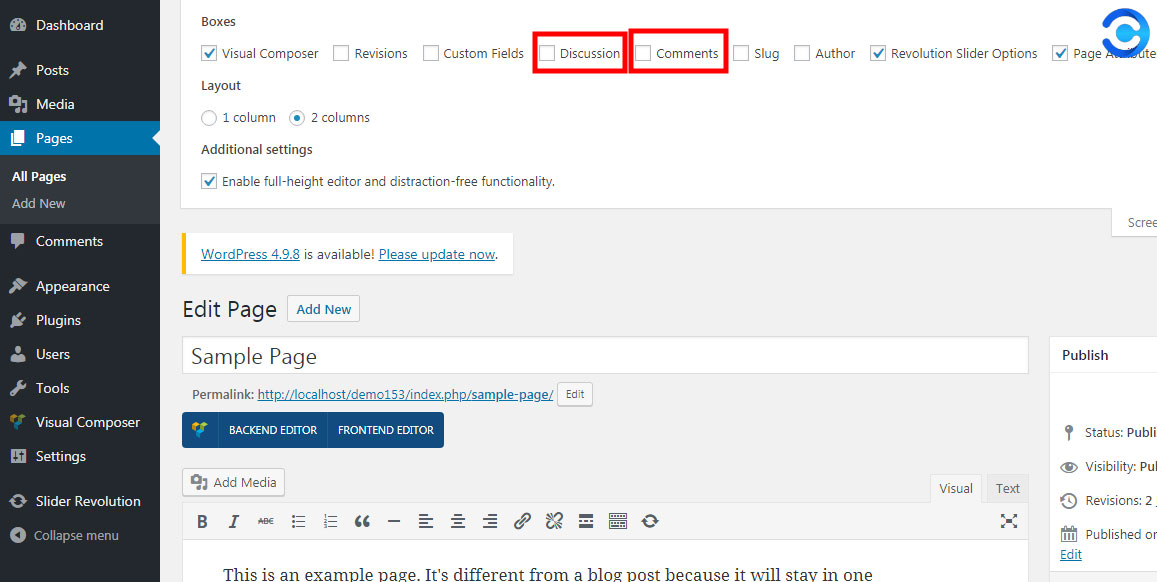
Step (4) − The dropdown list of screen options is displayed. Check the discussion and comments box as shown in the screenshot.
Step (5) − Now you can see the discussion and comments box at the bottom of your page/post in WordPress.
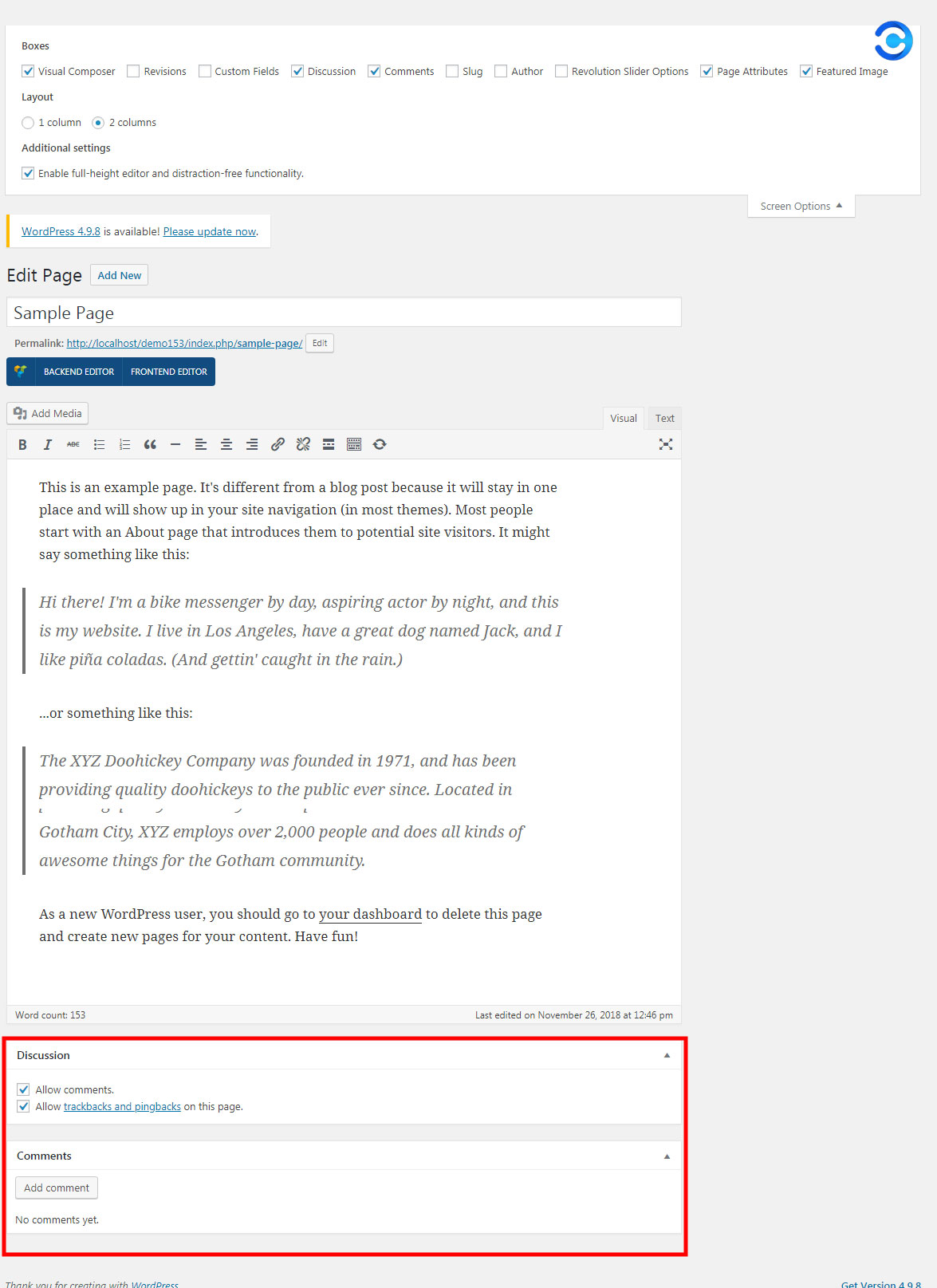
In the discussion section, there are two type options –
- Allow Comments − Allows visitors to comment on your blog posts/pages in WordPress.
- Allow trackback and ping-back on this page – Allows visitors to provide ping and trackback.
In the comments section, you can add a comment by clicking on the Add Comment button.
Step (6) − After adding the comment box, click the update button.
Recommended Posts

How to add Categories to WordPress
February 4, 2016

How to create a new post in WordPress
February 4, 2016

Installed Taxonomies and Post Types
February 4, 2016